 Incomplete Courses Report
 Incomplete Courses Report
|
To access the Incomplete Courses
report:
Make the appropriate selection (Region,
District or School)
from the drop down list.
The Migrant
and Non-migrant Students option
are checked by default. To exclude a specific student type from the
report un-check the appropriate box. One option must
be checked.
If a Classroom has been
created only students in the selected classroom will display on the
report. To view all students, use the Classroom
drop down and select All Students.
 If a classroom includes students from multiple schools,
the report will only show the students from the classroom that attend
the selected school.
If a classroom includes students from multiple schools,
the report will only show the students from the classroom that attend
the selected school.
Use the Default
Date or select a custom date using the Start
and End Date fields.
Click on the Show
Report button.
The report will open in PDF
format.
Reports require Adobe Acrobat Reader. If you do not have Adobe Acrobat
Reader installed on your computer, you can download it by clicking
 here.
here.
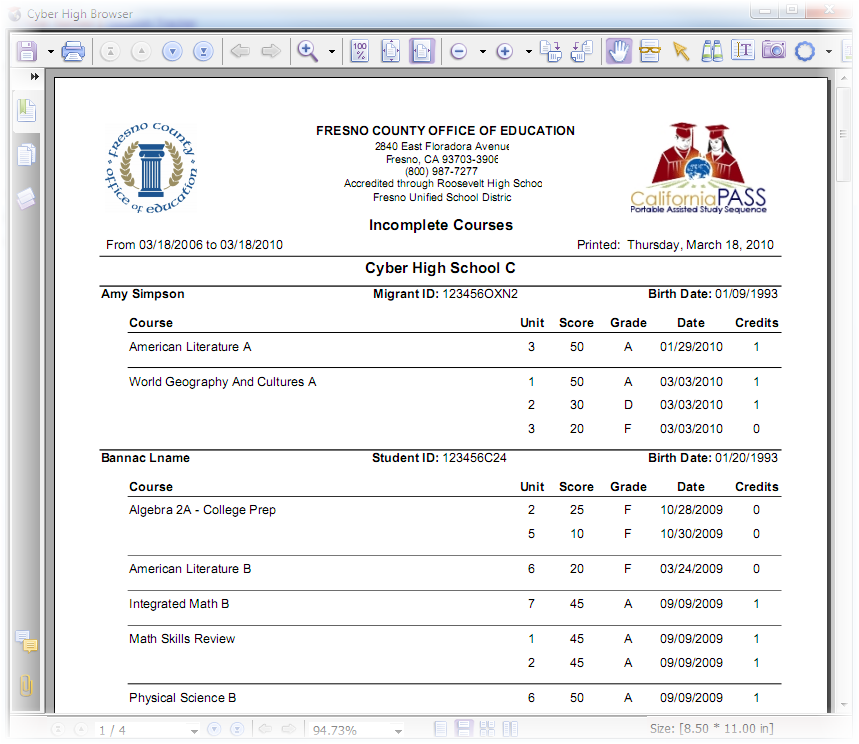
The Incomplete Courses Report displays exam information for courses that have been started but not completed. This report will display a list of students that have an incomplete course and that have attempted an exam within the last four years from todays date. Completed courses ill not display on this report. A course is complete when all exam attempts for the course have been exhausted regardless of the final outcome.
 Quick Facts